Applies to SQL Server 2019, 2022 and 2025.
The SQL Server error log location is set when the service starts, by the -e startup parameter. By default it sits under the instance’s MSSQL\Log folder on the system drive, and I usually move it when a build puts that folder somewhere small or awkward. The move itself is a one-line change; the part that catches people out is what happens at the next restart.
Finding the current error log location
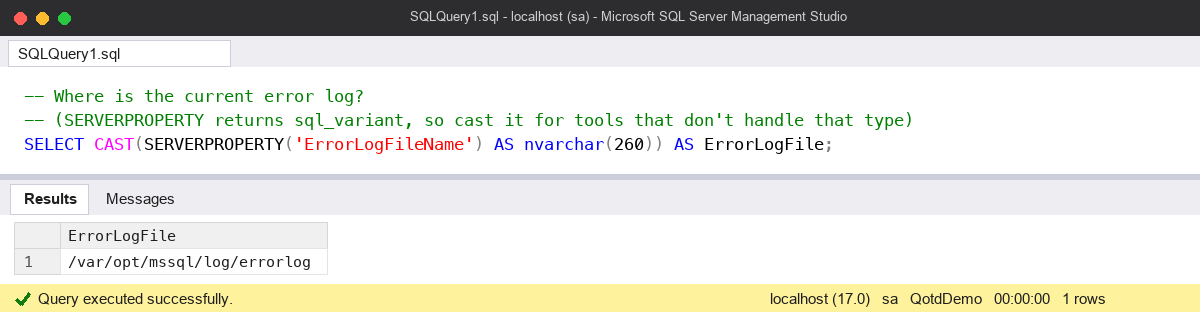
Before changing anything, check where the log is now and what the service was started with. This works on any instance and needs no setup:
-- Where is the current error log?
-- (SERVERPROPERTY returns sql_variant, so cast it for tools that don't handle that type)
SELECT CAST(SERVERPROPERTY('ErrorLogFileName') AS nvarchar(260)) AS ErrorLogFile;

-- Where are the default trace and system_health files going?
SELECT path AS DefaultTraceFile
FROM sys.traces
WHERE is_default = 1;

SELECT CAST(t.target_data AS xml).value('(EventFileTarget/File/@name)[1]', 'nvarchar(400)') AS SystemHealthFile
FROM sys.dm_xe_session_targets AS t
JOIN sys.dm_xe_sessions AS s ON s.address = t.event_session_address
WHERE s.name = N'system_health'
  AND t.target_name = N'event_file';

-- The startup parameters themselves (-d, -e, -l) on Windows
SELECT value_name, value_data
FROM sys.dm_server_registry
WHERE registry_key LIKE N'%Parameters';
The default trace and the system_health session write to the same folder as the error log, so they follow it when you move it. That’s worth knowing: the folder you pick needs room for those files too, not just the text log.
How to change the error log location
On Windows the change is made in SQL Server Configuration Manager:
- Create the new folder first, for example
E:\SQLLogs\MSSQLSERVER. - Give the SQL Server service account (for a default instance with a virtual account,
NT SERVICE\MSSQLSERVER) modify rights on it. - In Configuration Manager, open the SQL Server service’s Properties, then the Startup Parameters tab.
- Select the existing
-eentry, change it to the full path of the file, for example-eE:\SQLLogs\MSSQLSERVER\ERRORLOG, and click Update, then Apply. - Restart the SQL Server service. Nothing changes until you do.
After the restart, run the first query again. ErrorLogFileName should show the new path, and the default trace and system_health files should be in the new folder.
On Linux it’s mssql-conf rather than a startup parameter: create the folder, make the mssql user its owner, run sudo /opt/mssql/bin/mssql-conf set filelocation.errorlogfile /path/to/folder/errorlog, then restart the mssql-server service.
The common mistake: a service that won’t start
SQL Server needs to open its error log very early in startup. If it can’t, because the folder doesn’t exist, the path has a typo, or the service account can’t write there, the service doesn’t start. The awkward part is where you look for the reason. The error log is the place you’d normally go, and it’s exactly the thing that couldn’t be written, so there’s nothing new in it. The message is in the Windows Application event log instead.
The other half of the mistake is putting just a folder in -e. The parameter is the full path of the file, including the ERRORLOG name at the end. I copy the existing value, change only the folder part, and leave the file name as it was.
If the service won’t start after the change, open Configuration Manager again, put the old -e value back, and start the service. Then fix the folder or the permissions and try again. Doing the change in a maintenance window, with the old value written down, makes this a two-minute fix rather than an outage.
Watch out for
- Old logs stay where they were. The archived
ERRORLOG.1toERRORLOG.6files aren’t moved. The new folder starts with a fresh log, so copy the old ones across if you want them to hand. - SQL Server Agent has its own log.
SQLAGENT.OUTisn’t covered by-e. Change it in SSMS under SQL Server Agent, Properties, General, Error log file name, then restart Agent. - Clusters. Make the change on the active node while SQL Server is online. Microsoft notes the other node picks it up on its next failover, so the path must exist, with the same permissions, on every node.
- Keep cycling it. A new location doesn’t change how big the log grows. I still cycle it nightly, as in my post on cycling the error log.
Where it fits
Moving the error log is part of the same tidy-up as putting data, log and tempdb files on the right drives, which I cover in SQL Server referencing the wrong disk drives. Once it’s moved, Health Check 08: error log shows what I look for in it, and there’s more in my SQL Server DBA Handbook.
Microsoft’s pages on Database Engine service startup options and configuring server startup options cover the -e parameter and Configuration Manager.
This topic came up in the SQLServerCentral Question of the Day: Moving the Error Log.
Clive Roberts DBA